If there is one feature in Microsoft Word that matters more than anything else and I mean more than fonts, more than colors, more than spacing it is Styles.
- Not bold
- Not text size
- Not manual formatting
Microsoft Word – Wikipedia: https://en.wikipedia.org/wiki/Microsoft_Word
Note: Styles are discussed as part of Microsoft Word’s features and functionality within the main Word article and related documentation.
Before we proceed, please do the following in our Word.
- Click the carrot on the bottom right of the Ribbon that you have open in Word
- Select “Always show Ribbon” to ensure it does not disappear on you
Styles are Paramount
Once one truly understands and uses Styles, Word stops fighting us and starts working for us. Documents become easier to write, easier to edit, easier to navigate, easier to share, easier to update, and easier to reuse. Styles are the foundation of every professional document, whether it’s a report, manual, blog, proposal, or book.
Let’s Break This Down into the Correct Order of Operation
1. Write First. Style Second. Always.
One of the biggest mistakes we make in Word is trying to make the document look perfect while we’re still in the middle of actually writing the text. The issue arises when we are typing pages and at the same time…
- Choosing fonts
- Adjusting spacing
- Fiddling with colors
- Adding indentation
- Aligning text
Changing this every few sentences is a guaranteed way to slow yourself down and invite writer’s block, losing track of what you are writing.
The Correct Workflow and Better Approach:
- Write all the content first: Type and type and type and type and type and type, etc…
- Apply Styles after all of your typing and writing is done
This allows your brain to stay focused on expelling content and information instead of formatting the file to make it more pretty.
Think of writing a document like building a house.
- You don’t paint walls before they all exist.
- You don’t lay carpet before the floors are all finished.
- You don’t hang pictures before the walls are painted.
First, you build all the walls and ceilings.
- Then, once the structure is solid, you paint.
- Then you add the finishing touches.
Your words are the structure. Styles are the paint, flooring, and trim.
When you separate writing from styling, you give yourself permission to write freely, paragraph after paragraph, without caring what it looks like yet. You can write and write and write and write… and only later make it beautiful in minutes instead of hours.
2. Understanding Style Hierarchy (This Is Non‑Negotiable)
Styles are not just about appearance, they are about structure and structure means hierarchy.
Headings Have an Order: In Word, styles like Heading 1, Heading 2, and Heading 3 are not optional suggestions. They exist in a strict hierarchy:
- Heading 1 comes first
- Heading 2 belongs under Heading 1
- Heading 3 belongs under Heading 2
- And so, on
Skipping levels or using them randomly breaks the logical structure of your document.
Titles Are Not Headings
- Title ≠ Heading: A Title is the name of the document, like the name on the outside of a book.
- Heading ≠ Title: A Heading 1 is the highest‑level section inside the document, like the name at the beginning of each chapter within that book.
The Solar System Analogy (Because It Just Works), so Imagine your document as our solar system.
- Heading 1 = The Sun (the center. Everything else revolves around it.)
- Heading 2 = The Planets (Each planet orbits the sun and represents a major topic.)
- You wouldn’t place a planet orbiting another planet’s moon.
- Heading 3 = The Moons (This support and expand on each planet’s topic.)
- You wouldn’t place a moon directly orbiting the sun.
- Heading 4 = Asteroids, meteors, and meteorites
3. Creating or Modifying Styles to Make Them Yours
A common reason people avoid Styles is simple, they do not know what they are or how to use them. It is a learning and desire-based issue at the core. Some also say “I don’t like how the built‑in Styles look in Word, so I do not use them.”
- That’s fair and completely solvable.
Modifying Existing Styles
You are supposed to customize Styles, as no one is forced to stick with the odd teal-blue that Microsoft chose.
In Word:
- Open the “Styles” pane by clicking on the small arrow at the bottom right corner of the “Styles” section on the “Home” ribbon
- Right‑click a “Style” that you wish to modify (like Heading 1 or Normal)
- Choose “Modify”
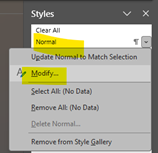
- Set the font, size, tabs, spacing, color, and so on and click OK when done.
From that point forward, changing some text to that Style changes every instance automatically and instantly. This means there is no further reformatting, searching, or fixing things one by one by one in the document. That’s power.
Creating Your Own Styles
If none of the default Styles fits your needs:
- Open the New Styles pane by clicking the button at the bot
- Modify the settings in the panel a New Style based on that formatting
- Name it clearly (for example: “Purple Body Content – Wide Spacing”)
- Click OK to save it
- Then apply it to any text/content that you wish to use it on
Now that formatting is reusable, consistent, and controlled.
Why This Matters More Than Anything Else
When you use Styles correctly:
- Your document stays consistent
- Updates take seconds instead of hours
- Documents scale as they grow
- Collaboration becomes easier
- You stop fighting Word
- You do not get writer’s block
- Table of Contents work perfectly and automatically
Styles are not decoration; they are architecture and foundation.
Final Thoughts
If you take only one thing from this: is the “Write first” and “Style later”, structuring of documents is best.
Styles allow you to think like a writer while writing and then like a designer only when it’s time to design. Once you adopt that mindset, Microsoft Word stops being frustrating and starts being professional.