See attachments below for PDF versions of my keyboard shortcuts.
clickitus [klik-i-tuhs]
noun
Definition:
A repetitive strain condition affecting the index finger, typically the left-click finger, resulting from excessive and prolonged use of a computer mouse. Commonly experienced by individuals engaged in continuous digital tasks such as data entry, graphic design, or gaming, clickitus is characterized by soreness, fatigue, or discomfort in the finger due to repetitive clicking motions performed over extended periods.
Usage:
“After ten hours of spreadsheet work, she was definitely feeling the effects of clickitus.”
The Hidden Logic Behind Keyboard Shortcuts
Keyboard shortcuts are the unsung heroes of productivity that help us all save time, reduce repetitive strain, and make digital workflows smoother. But have you ever wondered why certain shortcuts were created the way they were? Why is Ctrl+C used for Copy and Ctrl+V for Paste? It turns out, there’s more logic, ration, and reason behind this design than meets the eye.
Familiarity Meets Function
The earliest keyboard shortcuts were designed with two key principles in mind:
- ease of access
- mnemonic association
Take Ctrl+C for example
The letter “C” stands for “Copy” — a straightforward mnemonic. It’s also conveniently located on the left side of the keyboard, near the Ctrl key, making it easy to press with one hand. This proximity was crucial in the early days of computing when ergonomics and speed were paramount.
The Genius of Ctrl+V
Now, Ctrl+V might seem less intuitive at first glance. Why did someone choose the letter “V” for paste? Here’s where design meets intelligent symbolism. The letter “V” resembles a downward-pointing arrow or a caret (^) — a visual metaphor for inserting something into a sentence. When you paste, you’re essentially dropping copied content into a new location, and the “V” subtly reinforces that action.
Even better, V is immediately next to C on the keyboard. This adjacency means users can quickly move from copying to pasting without repositioning their hands — a small but powerful detail that enhances speed and fluidity.
A System of Consistency
This logic extends across many shortcuts and platforms:
- Ctrl+X for cut (X looks like scissors)
- Ctrl+Z for undo (Z for “zap” or “zero out”)
- Ctrl+S for save (S for “Save”)
- Ctrl+P for print (P for “Print”)
Each shortcut is designed to be as intuitive as possible and be ergonomic to save movements, balancing symbolic meaning with physical convenience while not overlapping with another shortcut.
Summary
Keyboard shortcuts aren’t just random combinations of keys strewn across the keyboard— they’re the result of thoughtful design rooted in usability, symbolism, and efficiency. The next time you hit Ctrl+C and Ctrl+V, take a moment to appreciate the sophisticated logic behind those keystrokes. It’s a small detail, but one that makes a big difference in how we interact with technology every day.
Why Using Keyboard Shortcuts Creates Efficiencies and Saves from Over-Clicking
In this dynamic and vast a digital world, efficiency is more than a luxury—it’s a requirement. Whether you’re a software developer, data analyst, writer, program manager, call center agent, nurse, doctor, senior vice president, admin, the ability to work quickly and accurately can make a significant difference in your work-life balance. One of the most overlooked yet powerful tools for boosting efficiency is the use of keyboard shortcuts. These simple key combinations can dramatically reduce the time spent on routine tasks, minimize distractions, and streamline workflows across virtually every software and hardware platform.
Despite their proven benefits, many users continue to ignore them while relying on mouse navigation for tasks that could be completed in seconds with a quick keyboard shortcut. This blog explores the reasons why keyboard shortcuts are essential for timesaving, operational efficiency, and how adopting them can transform the way individuals and organizations work.
1. Time Savings: Seconds Add Up
The most obvious benefit of keyboard shortcuts is the time they save. Consider the task of copying and pasting text while using the mouse requires highlighting the text, right-clicking, selecting “Copy,” moving to the destination, right-clicking again, and selecting “Paste.” In contrast, pressing Ctrl+C and Ctrl+V completes the same task in under a second.
While the time saved on a single action may seem negligible, the cumulative effect is substantial. According to productivity studies that I have happened upon, the average office worker performs hundreds of repetitive actions daily—opening new tabs, switching between windows, formatting documents, sending emails, and more. If each action takes 2–3 seconds longer using a mouse, that could amount to about 30–60 minutes of wasted time per day. Over the course of a year, that’s more than 200 hours—the equivalent of five full workweeks of work.
2. Reduced Cognitive Load
Using keyboard shortcuts also reduces cognitive load, allowing users to stay focused on the task at hand. Every time a user reaches for the mouse, their attention shifts away from the keyboard and screen. This micro-distraction, repeated dozens of times per hour, breaks concentration and slows momentum.
Keyboard shortcuts keep users in a flow state, enabling them to execute commands without interrupting their thought process. For example, a writer using Ctrl+B to bold text or Ctrl+Z to undo a mistake can continue typing without breaking rhythm. This seamless interaction between thought and action enhances creativity, accuracy, and speed.
Moreover, keyboard shortcuts often eliminate the need to navigate complex menus. In software like Excel, Photoshop, or Visual Studio, menu structures can be deep and unintuitive. Shortcuts bypass these complex layers, allowing you to access powerful features instantly.
3. Ergonomic Benefits and Efficiency
Beyond mental efficiency, keyboard shortcuts offer ergonomic advantages. Constant switching between keyboard and mouse can lead to repetitive strain injuries (RSIs), such as carpal tunnel syndrome. By minimizing mouse usage, users reduce wrist movement and strain, promoting healthier work habits.
For professionals who spend long hours at a computer—such as programmers, designers, and writers—this can be a game-changer. Keyboard-centric workflows are not only faster but also more comfortable, reducing fatigue and improving long-term productivity.
Additionally, many shortcuts are designed to be intuitive and easy to remember. For example:
- Ctrl+S for Save
- Ctrl+P for Print
- Alt+Tab to switch between applications
- Ctrl+F to Find text
These commands become second nature with regular use, further enhancing speed and comfort.
4. Enhanced Multitasking
Keyboard shortcuts are especially valuable in multitasking environments. Power users often juggle multiple applications—email, spreadsheets, browsers, and chat tools—simultaneously. Shortcuts like Alt+Tab or Windows+Tab allow users to switch between apps instantly, while Ctrl+Shift+T reopens browser tab that you just closed, and Alt+S sends emails without clicking the mouse.
In software development, shortcuts can automate complex tasks. Integrated development environments (IDEs) like Visual Studio Code or IntelliJ offer shortcuts for compiling code, debugging, and navigating files. These efficiencies translate directly into faster development cycles and fewer errors.
Even in creative fields, shortcuts are indispensable. Graphic designers use Ctrl+T to transform objects in Photoshop, while video editors rely on shortcuts to cut, trim, and render footage. These actions, when performed manually, take significantly longer and interrupt creative flow.
5. Organizational Impact and Culture
At the organizational level, encouraging the use of keyboard shortcuts can foster a culture of efficiency. Teams that adopt shortcut-driven workflows tend to be more agile, responsive, and productive. Training employees on shortcut usage can reduce onboarding time, improve software adoption, and enhance collaboration.
For example, customer support teams using CRM platforms like Salesforce, Microsoft Dynamic CRM, or Zendesk can resolve tickets faster with shortcut keys for tagging, replying, and assigning cases. Finance teams working in Excel can use shortcuts for formulas, formatting, and navigation, reducing errors and speeding up reporting.
Moreover, organizations that prioritize efficiency often see improvements in employee satisfaction. Workers feel empowered when they can complete tasks quickly and confidently. This sense of mastery contributes to morale, engagement, and retention.
6. Adoption Strategies
Despite the clear benefits, many users resist adopting keyboard shortcuts due to the perceived learning curve or they don’t care to learn and expand their horizons. However, the transition can be gradual and rewarding by mastering a few universal shortcuts to begin—copy, paste, undo, save—and build from there. Most software platforms offer built-in cheat sheets or customizable shortcut settings.
Tools like AutoHotkey (Windows) allow users to create custom shortcuts, tailoring workflows to individual needs. Browser extensions and productivity apps also offer shortcut overlays and training modules to ease adoption.
Organizations can support this shift by offering workshops, cheat sheets, and gamified learning experiences. Encouraging peer sharing and shortcut challenges can make the process fun and engaging.
Small Keys = Big Impact
Keyboard shortcuts are more than just a convenience—they are a strategic tool for maximizing time, minimizing distraction, and enhancing performance. In a world where every second counts, the ability to execute commands instantly can be the difference between good and great productivity.
Whether you’re an individual seeking personal efficiency or an organization striving for operational excellence, embracing keyboard shortcuts is a smart, responsible, and transformative choice. The keys are literally at your fingertips—use them wisely.
Stop the Key Tap-Dance
If you find yourself pressing the same key on the keyboard more than twice in a row — you’re doing it wrong. Repeating keys like “Space” or “Enter” to manually adjust formatting is not only inefficient, it’s simply wrong. Learning these suggested options below is like upgrading from a tricycle to a race car.
Examples of Over-clicking
| Task | Old Habit (incorrect) | Efficient Option | Reasoning and Benefits |
| Indent a sentence | Press the Space bar 6 times in a row | 1) Press “Tab” to indent a sentence 2) Press CTRL + M to indent an entire paragraph | 1) Always aligns the beginning no matter the font 2) saves 5 clicks on each line |
| Center text vertically and horizontally on the page | 1) You press Enter a bunch of times to get the text to move down the page 2) You click the SPACE bar a number of time to move it towards the middle | 1) Ribbon: * Layout tab * Click the small arrow in Page Setup group * Layout tab * Under Vertical alignment * Choose Center * Click OK 2) Keyboard Shortcuts: CTRL + E to center | This will not miss on the exact placement of the text while being repeatable and saving 100s of keystrokes while guessing the Enter time |
| Push text to the next page | Hammering the Enter key over and over again | Choose either 1) Press: CTRL + Enter 2) Ribbon: Insert + Page Break | 1) The text will always be at the top of a page 2) You will not have to go back and add/remove Enters keep moving it around |
Shortcuts Hide in Plain Sight
One of the most overlooked features in modern software is how generously developers show you the shortcuts — right in the menus and ribbons. Whether you’re using Microsoft Word, Excel, or even web browsers, hovering over a button or opening a dropdown often reveals the associated keyboard shortcut next to the command name. For example, when you hover over the Bold button in Word, you’ll see Ctrl+B pop up in the tooltip. This isn’t accidental — it’s a deliberate design choice to help users learn and adopt shortcuts naturally. Developers want you to be efficient, and they’ve embedded these hints throughout the interface to guide you from day one. The more you pay attention to these visual cues, the faster you’ll build muscle memory and unlock a smoother, faster workflow.
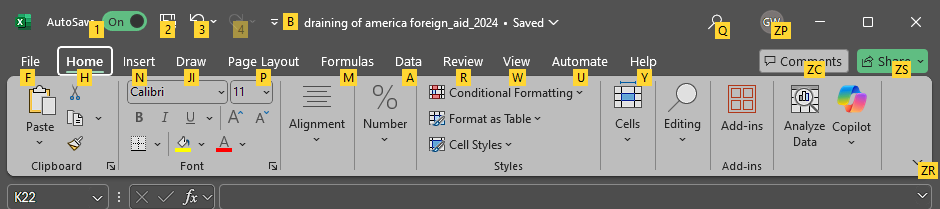
Try pressing the Alt key once quickly
- then the shortcuts on that screen are revealed to you in little yellow boxes
More than just Ctrl Based
You know there has been a key on your keyboard since 1995, that’s 30+ years, that is just ignored by most if not nearly everyone. That key which sometimes has a picture on it has a number of keyboard shortcuts built into it too. That key is the Windows between the Ctrl and Alt key on the left side of your keyboard. To make yourself even more efficient and dynamic, try some of these below.
| The Windows Key is between the Ctrl key and the Alt key |
| Windows Key (Opens Start menu) |
| Windows + Tab (Switches between apps) |
| Windows + Pause/Break (Opens the System Configuration Menu) |
| Windows + F (Find Files) |
| Windows + U (Utility Manager) |
| Windows + X (Opens the secret Start menu) |
| Windows + L (Locks your computer) |
| Windows + E (Opens File Explorer) |
| Windows + I (Opens the Settings menu) |
| Windows + D (Shows the desktop or hide if you pressed again) |
| Windows + P (Opens presentation/projection sidebar) |
| Windows + R (Opens the Run window) |
| Windows + C (Opens Copilot Chat sidebar) |
| Windows + T (Cycles through the apps, including pinned apps, on the taskbar) |
| Windows + [a Number] (Opens the app pinned in the [Number] position of taskbar) |
| Windows + , (Will display the desktop briefly) |
| Windows + M (Minimize all open Windows) |
| Windows + Shift + M (Restore minimized Windows) |
| Windows + Shift + Right arrow (Move selected window to the right monitor) |
| Windows + Shift + Left arrow (Move selected window to the left monitor) |
| Windows + Print Screen (Take a screenshot of the entire desktop) |
Common Keyboard Shortcuts for Windows PCs
| Office Universal: |
| Ctrl + F1 = Expand/Collapse ribbon |
| Ctrl + O = Open |
| Ctrl + N = New |
| Ctrl + P = Print |
| Ctrl + W = Close active window/file |
| Ctrl + S = Save the file |
| Ctrl + A = Select All |
| Ctrl + C = Copy |
| Ctrl + V = Paste |
| Ctrl + X = Cut |
| Ctrl + F = Find |
| Ctrl + H = Replace |
| Ctrl + Z = Undo |
| Ctrl + Y = Redo |
| Ctrl + B = Bold |
| Ctrl + I = Italic |
| Ctrl + U = Underline |
| Ctrl + K = Hyperlink |
| Ctrl + L = Left align |
| Ctrl + R = Right align |
| Ctrl + E = Center align |
| Ctrl + J = Justified (like a newspaper) |
| Ctrl + G = Go to |
| Ctrl + Shift + L = Add a bulleted list |
| F1 = Help |
| F4 = Repeat (last keystroke action) |
| F7 = Spell Checker |
| F9 = Refresh Formulas/Tables/Links |
| F12 = Save As dialog box |
| Shift + F7 = Thesaurus |
| Shift + F10 = Open right-click menu |
| Alt + Click = Research |
| Alt + F4 = Exit Active Application |
| Alt + F11 = Open VBA Editor |
| Ctrl + – = Zoom Out |
| Ctrl + + = Zoom In |
| F2 = Rename the selected item |
| F3 = Search in File Explorer |
| F4 = Display address bar in Explorer |
| Ctrl + R = Refresh the active window |
| Alt + Tab = Switch between apps |
| Ctrl + Shift + Esc = Open Task Mngr |
| PowerPoint Specific: |
| Esc = End slide show |
| F5 = Present (from beginning) |
| Shift + F5 = Present (from this slide) |
| Ctrl + G = Group selected objects |
| Ctrl + D = Duplicate slide |
| Ctrl + M = New slide |
| Ctrl + Shift + Tab = Switch view |
| Ctrl + Spacebar = Play or pause media |
| Alt + F9 = Show or hide guides |
| Shift + F9 = Show or hide the grid |
| Outlook Specific: |
| Alt + S = Send message |
| Ctrl + R = Reply to message |
| Ctrl + F = Forward (not find) |
| Ctrl + N = New (new object) |
| Ctrl + 1 = Go to Email Section |
| Ctrl + 2 = Go to Calendar Section |
| Ctrl + 3 = Go to Contacts Section |
| Ctrl + 4 = Go to Tasks Section |
| Ctrl + 5 = Go to Notes Section |
| Ctrl + Shift + R = Reply to All |
| Ctrl + Shift + G = Flag for Follow Up |
| Ctrl + E = Find (Search) |
| Ctrl + Shift + F = Advanced Find |
| Ctrl + D = Delete |
| Ctrl + Q = Mark as Read |
| Ctrl + Shift + K = New task |
| Visio Specific: |
| F5 = Full Screen |
| Ctrl + D = Duplicate |
| Ctrl + Shift + Click = Zoom |
| Ctrl + Shift + Right/Click = Out |
| Ctrl + 1 = Pointer Tool |
| Ctrl + 2 = Text Box |
| Ctrl + 3 = Connector Tool |
| Ctrl + 4 = Freeform |
| Ctrl + 6 = Line |
| Ctrl + 7 = Arc |
| Ctrl + 8 = Rectangle |
| Ctrl + 9 = Ellipse |
| Ctrl + Shift + G = Group |
| Ctrl + Shift + U = Ungroup |
| Ctrl + H = Flip Horizontal |
| Ctrl + J = Flip Vertical |
| Ctrl + R = Rotate Right |
| Ctrl + L = Rotate Left |
| Excel Specific: |
| Ctrl + Enter = Fill selected range |
| Ctrl + Spacebar = Select entire column |
| Ctrl + D = Fill Down |
| Ctrl + R = Fill Right |
| Shift + Spacebar = Select entire row |
| Ctrl + Shift + Home = Select to cell a1 |
| Shift + F3 = Insert a Function |
| F4 = Absolute reference ($ not money) |
| Ctrl + 1 = Format Cells |
| Esc = Exits cell without editing data |
| Shift + (Arrow) = Select range |
| Ctrl + (Arrow) = Move Cursor to Edge |
| F2 = Moves Cursor to end of cell |
| Ctrl + * = Select List (Data) |
| Alt + Enter = New line of text in cell |
| Shift + F11 = Insert new worksheet |
| Ctrl + Tab = Move to next workbook |
| Ctrl + ; = Insert current date |
| Ctrl + Shift + ; = Insert current time |
| Ctrl + ‘ = Duplicate cell Above |
| ‘ = (preceding data – formats as text) |
| Shift + Spacebar = Select Row(s) |
| Ctrl + Spacebar = Select Column(s) |
| Ctrl + F3 = Define Name |
| Alt + F = Go to the File tab |
| Alt + H = Go to the Home tab |
| Alt + P = Go to Page Layout tab |
| Alt + A = Go to Data tab |
| Alt + W = Go to View tab |
| Alt + M = Go to Formula tab |
| Alt + I = Go to Insert tab |
| Alt + R = Go to Review tab |
| Ctrl + 9 = Hide the selected row(s) |
| Ctrl + 0 = Hide the selected column(s) |
| Ctrl + – = Open Delete Dialog Box |
| Ctrl + Alt + + = Zoom in |
| Ctrl + Alt + – = Zoom out |
| Ctrl + Shift + F = Open Format Cells |
| Ctrl + Q = Quick Analysis |
| Ctrl + R = Rename the table |
| Ctrl + Spacebar = Select entire column |
| Ctrl + Enter = Fill selected range |
| Page/Document Location: |
| Ctrl + Home = Top of Document |
| Ctrl + End = End of Document |
| Ctrl + Page Up = Top of Page |
| Ctrl + Page Down = Bottom of Page |
| Word Specific: |
| Ctrl + Space = Remove manual format |
| Ctrl + Shift + S = Open Styles pane |
| Ctrl + 1 = Single spacing |
| Ctrl + 2 = Double spacing |
| Ctrl + 5 = 1.5 spacing |
| Ctrl + 0 = Remove paragraph spacing |
| Ctrl + Shift + N = Apply Normal style |
| Ctrl + Shift + K = Apply small caps |
| Ctrl + Alt + 1 = Apply the Heading 1 |
| Ctrl + Alt + 2 = Apply the Heading 2 |
| Ctrl + Alt + 3 = Apply the Heading 3 |
| Ctrl + D = Font Styling |
| Ctrl + [ = Decrease font size 1 point |
| Ctrl + ] = Increase font size 1 point |
| Ctrl + ç = Move 1 word left |
| Ctrl + è = Move 1 word right |
| Ctrl + é = Move up by 1 paragraph |
| Ctrl + ê = Move down 1 paragraph |
| Ctrl + Shift + C = Copy formatting |
| Ctrl + Shift + V = Paste formatting |
| Ctrl + M = Indent the paragraph |
| Ctrl + Shift + M = Remove indent |
| Ctrl + Q = Remove paragraph format |
| Ctrl + Equals = Apply Subscript |
| Ctrl + Shift + + = Apply Superscript |
| Ctrl + Alt + F = Insert a footnote |
| Ctrl + Alt + D = Insert an endnote |
| Ctrl + F9 = Insert an empty field |
| Alt + Shift + P = Insert a PAGE field |
| Alt + Shift + T = Insert TIME field |
| Alt + Shift + D = Insert DATE field |
| Ctrl + Alt + I = Print preview |